
Samsung Smart TVs are some of the most popular streaming devices in the world, and pairing one with the right IPTV solution can transform your living room into a full entertainment hub. But not every IPTV app works smoothly on Samsung’s Tizen operating system, and picking the wrong one can mean buffering, crashes, or a clunky interface. This guide breaks down what to look for, the top IPTV apps compatible with Samsung TVs, and how to set everything up correctly.
What Is IPTV and How Does It Work on Samsung TV?
IPTV, short for Internet Protocol Television, delivers live TV channels and on-demand content through an internet connection rather than traditional cable or satellite signals. Instead of a set-top box tuned to a broadcast frequency, IPTV streams data packets directly to your device, similar to how Netflix or YouTube works.
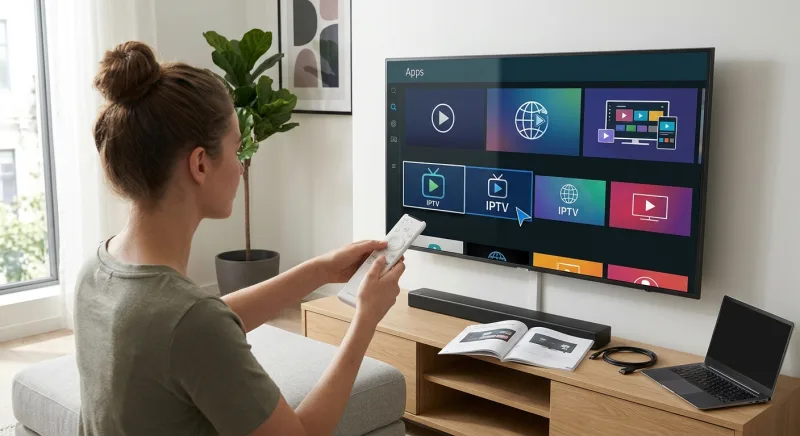
On a Samsung TV, IPTV typically runs through a dedicated app installed via the Samsung Smart Hub or, in some cases, sideloaded using developer tools. These apps read a playlist file (often in M3U or M3U8 format) or connect to a provider’s server using login credentials, then organize channels and video-on-demand libraries into a navigable interface.
Because Samsung TVs run on Tizen OS, not every IPTV player available for Android or Fire TV will work out of the box. This is why choosing an app specifically built for, or compatible with, Tizen matters so much for a smooth experience.
Key Features to Look for in IPTV for Samsung TV
Before choosing an IPTV app for your Samsung TV, it helps to know which features actually affect day-to-day usability. Here are the factors that matter most.
- Tizen OS compatibility: The app should be built or optimized for Samsung’s Tizen platform, not just adapted from Android.
- Electronic Program Guide (EPG) support: A clear, scrollable guide showing what’s airing now and later makes navigation far easier.
- Multi-format playlist support: Look for apps that accept M3U, M3U8, Xtream Codes, and JSON playlist formats for flexibility.
- Catch-up TV and VOD: The ability to rewind live broadcasts or access on-demand libraries adds significant value.
- Stable performance: Smooth playback without frequent buffering or crashing is essential, especially for live sports and news.
- User interface design: A remote-friendly, TV-optimized layout matters more than mobile-style menus.
- Multi-screen or profile support: Some households need separate profiles or the ability to stream on multiple devices simultaneously.
Interface stability strongly shapes user satisfaction with streaming apps. That’s why our platform runs on Anti-Freeze Technology, delivering zero buffering during peak events. Testing performance yourself is easy, thanks to our free 24-hour trial.
Best IPTV Apps and Players for Samsung TV
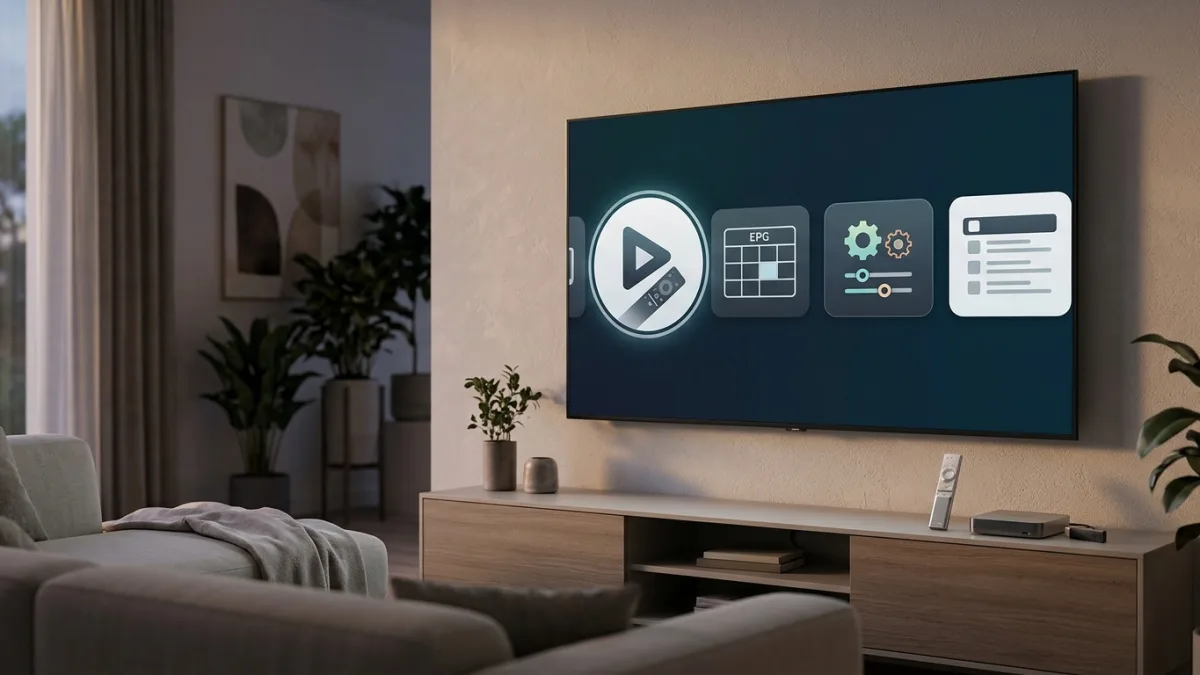
Below are some of the most widely used IPTV player apps that are either natively available on Samsung’s Smart Hub or can be installed through supported workarounds. Each one has strengths depending on what you value most, whether that’s simplicity, customization, or advanced EPG features.
1. Smart IPTV (SIPTV)
Smart IPTV is one of the most established IPTV players for Samsung Smart TVs. It’s available directly on many Samsung app stores and pairs with playlists uploaded through its companion website. Users appreciate its clean grid layout, reliable EPG integration, and consistent updates.
One drawback is that Smart IPTV requires activation through a small one-time fee after a trial period, and playlists must be registered online rather than entered directly in the app. Still, for Samsung-specific reliability, it remains a favorite among long-time IPTV users.
Tizen-specific challenges like codec support and remote-friendly navigation can complicate app development for Samsung TVs. Rather than speculate on engineering details, our service simply ensures smooth Smart TV playback, complete with a 1-minute guided setup and instant activation.
2. IPTV Smarters Pro
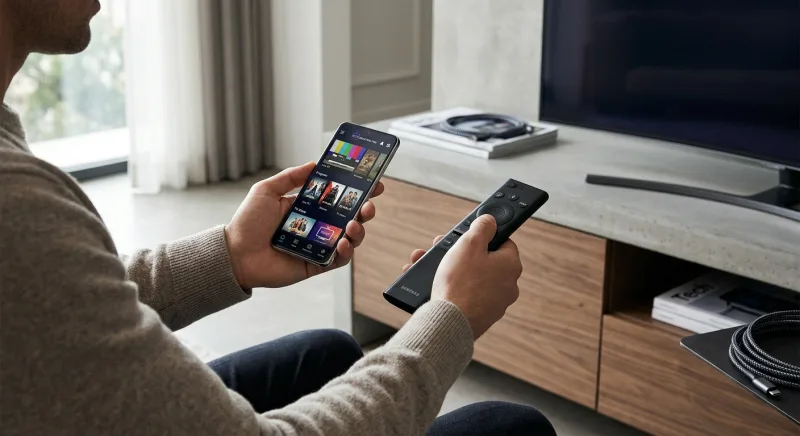
IPTV Smarters Pro is a cross-platform app known for its polished interface and support for Xtream Codes API connections. While it’s more commonly associated with Android and Fire TV, versions compatible with Samsung devices exist, often through sideloading methods.
It supports multiple playlists, catch-up TV, and a built-in EPG that many users find more intuitive than competitors. If your provider supports Xtream Codes logins, this app tends to offer one of the smoothest setup processes.
3. GSE Smart IPTV
GSE Smart IPTV is praised for its flexibility, supporting a wide range of playlist formats including M3U, JSON, and Xtream Codes. It also includes external player support, subtitle syncing, and multi-screen capability for tech-savvy users who want more control.
Adoption trends between M3U/M3U8 playlists and Xtream Codes vary across smart TV platforms. Rather than chase shifting industry numbers, focus on what matters: reliable playback, broad channel access, and consistent updates like the weekly refreshes our service provides.
The interface can feel less refined compared to Smart IPTV or IPTV Smarters, but the sheer number of customization options makes it appealing for advanced users managing multiple playlists or providers.
4. Perfect Player IPTV
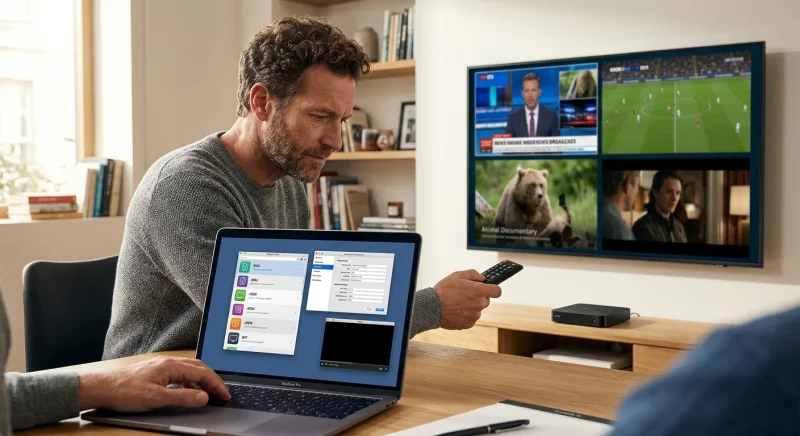
Perfect Player is a lightweight IPTV app that focuses on speed and simplicity. It supports M3U playlists and EPG integration, and while it’s more commonly used on Android boxes, some users successfully run it on Samsung TVs via workaround installations.
It’s a solid choice for those who want a no-frills experience without excessive menus or ads cluttering the interface.
5. SS IPTV
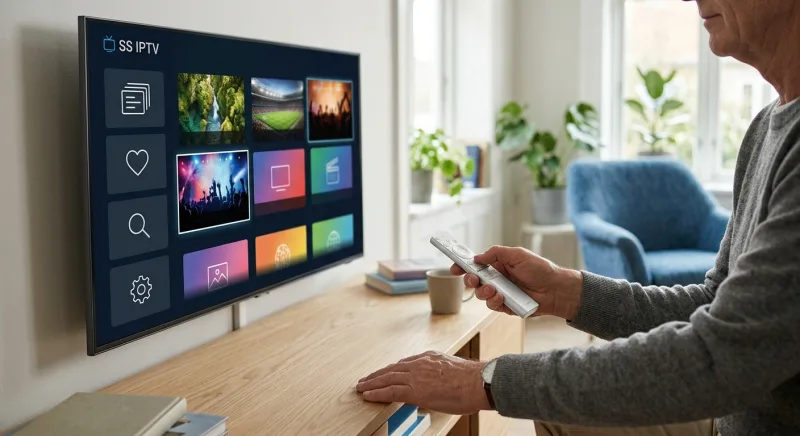
SS IPTV is another Samsung-friendly option, often pre-installed or easily downloadable through Samsung’s app store depending on the region. It offers straightforward playlist management and has been optimized specifically for Samsung’s remote and navigation system.
Its EPG support and channel categorization make it a dependable pick for users who primarily want live TV without a lot of extra features.
Comparison Table: Top IPTV Apps for Samsung TV
| App | Tizen Compatibility | EPG Support | Playlist Formats | Best For |
|---|---|---|---|---|
| Smart IPTV | Native | Yes | M3U | Reliability and simplicity |
| IPTV Smarters Pro | Sideload/Workaround | Yes | M3U, Xtream Codes | Polished interface |
| GSE Smart IPTV | Sideload/Workaround | Yes | M3U, JSON, Xtream Codes | Advanced customization |
| Perfect Player | Sideload/Workaround | Yes | M3U | Lightweight performance |
| SS IPTV | Native | Yes | M3U | Samsung-optimized navigation |
How to Install IPTV on Samsung TV
Installing IPTV on a Samsung Smart TV varies slightly depending on the app and your TV’s model year, but the general process follows a similar pattern. Here’s a step-by-step overview for the most common method.
- Turn on your Samsung TV and navigate to the Smart Hub or App Store.
- Search for the IPTV app you want to install, such as Smart IPTV or SS IPTV.
- Download and install the app directly from the store if it’s natively supported.
- Note the MAC address displayed within the app, usually found in the settings menu.
- Visit the app’s companion website on a computer or phone and register your MAC address with your playlist URL.
- Restart the app on your TV to load the newly linked playlist and EPG data.
- Browse channels or VOD content using your TV remote once the playlist populates.
For apps not available in the native Samsung store, some users rely on developer mode sideloading, which involves enabling developer options through the TV’s settings and installing an APK-style package via a local network connection. This method is more technical and may not be supported on all Samsung TV models.
Samsung Smart TV Compatibility Considerations
Samsung’s Tizen OS has gone through multiple versions over the years, and not every IPTV app supports every version equally well. Older Samsung TVs, particularly models from before 2018, may have limited app store options or reduced processing power for handling high-bitrate streams.
Newer Samsung models generally offer better hardware decoding support for formats like H.265 (HEVC), which many IPTV providers use to reduce bandwidth while maintaining picture quality. If you’re using an older TV, checking the supported codec list in your TV’s manual can prevent playback issues before committing to a service.
Compatibility issues can vary widely depending on which Tizen version a Samsung TV runs. Rather than guess at the installed base, our service supports Smart TVs directly alongside Firestick, Android TV, Roku, and more, so setup stays simple regardless of your TV’s age.
Samsung’s Tizen platform remains one of the most widely used smart TV operating systems today. Whatever the exact market split, our service is built to work smoothly across Smart TVs, Firestick, Android TV, Apple TV, and other major platforms.
Legal Considerations When Choosing IPTV Services
It’s important to distinguish between IPTV player apps, which are simply software tools for streaming content, and IPTV subscription services, which provide the actual channel content. The apps mentioned above are legal to download and use, but the legality of a subscription depends entirely on whether the provider has proper licensing agreements with content owners.
Unauthorized IPTV services that stream copyrighted content without licensing agreements operate in a legal gray area or outright violate copyright law, depending on jurisdiction. Users should research any IPTV subscription provider carefully, checking for transparent business practices, clear terms of service, and legitimate licensing claims before subscribing.
Choosing an unlicensed IPTV provider can carry real legal and financial risks for subscribers. That’s why our service operates transparently, with secured checkout, a 7-day money-back guarantee, and no hidden recurring charges built into any plan.
Tips for Getting the Best IPTV Streaming Experience on Samsung TV
Even with the right app installed, a few adjustments can significantly improve stream quality and reliability on your Samsung TV.
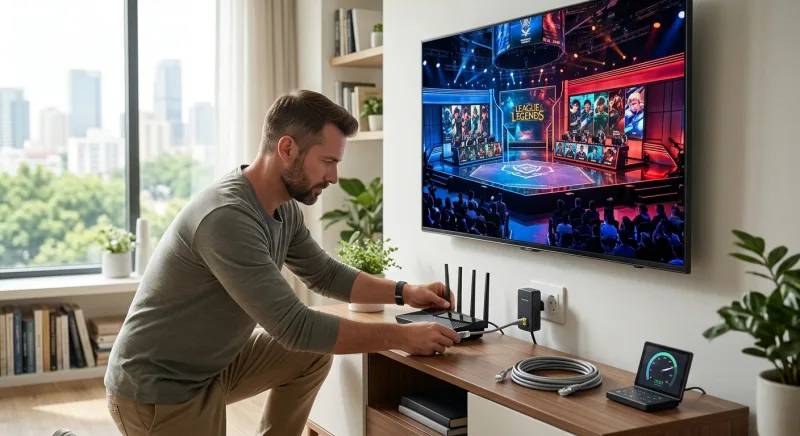
- Use a wired connection when possible: Ethernet connections tend to offer more stable bandwidth than Wi-Fi, especially for 4K content.
- Check your internet speed: A minimum of 15-25 Mbps is generally recommended for smooth HD to 4K IPTV streaming without buffering.
- Update your TV’s firmware regularly: Samsung periodically releases Tizen updates that improve app performance and fix compatibility bugs.
- Restart your router periodically: This clears temporary network congestion that can cause stream interruptions.
- Avoid running multiple streaming apps simultaneously: Background apps can compete for bandwidth and processing resources.
- Use a VPN cautiously: Some users add a VPN for privacy, but this can occasionally slow down stream speeds depending on server location.
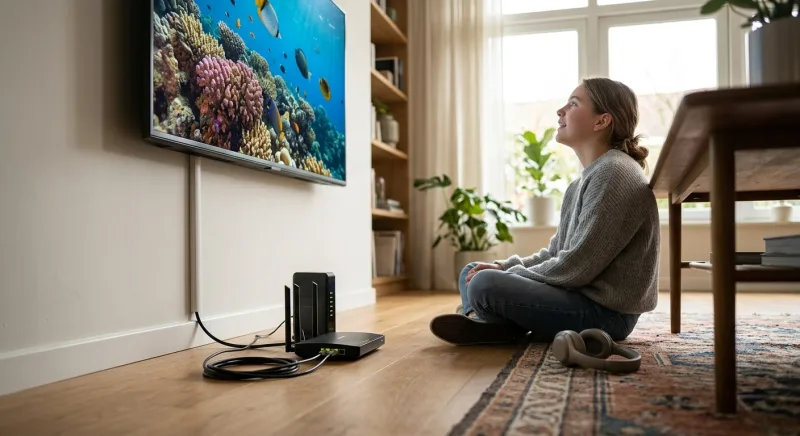
Smooth 4K streaming depends heavily on having sufficient, stable bandwidth. Rather than lean on a single benchmark, our service is engineered with Anti-Freeze Technology to deliver true 4K, UHD, FHD, and HD playback with zero buffering during peak events.
Choosing the Right IPTV Setup for Your Household
The “best” IPTV app for a Samsung TV often depends on individual priorities. Someone who wants a simple, native experience may prefer Smart IPTV or SS IPTV. Someone managing multiple playlists or providers might lean toward GSE Smart IPTV for its flexibility.
Families streaming across multiple rooms or devices should also consider whether their subscription allows multiple simultaneous connections, since not all providers support this without an upgraded plan. Testing a free trial period, when available, before fully committing helps confirm both app performance and content reliability on your specific Samsung model.
Frequently Asked Questions
Can I install any IPTV app directly on my Samsung Smart TV?
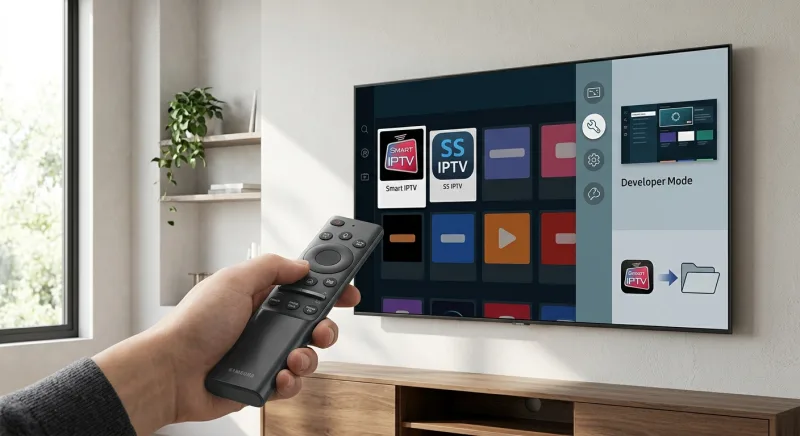
Not all IPTV apps are available directly through Samsung’s app store. Some, like Smart IPTV and SS IPTV, are natively supported, while others require sideloading through developer mode, which isn’t available or supported on every Samsung TV model.
Do I need a separate device to use IPTV on Samsung TV?
No, if your Samsung TV supports one of the compatible IPTV apps natively, you don’t need an external streaming box. However, older Samsung models with limited app support may benefit from an Android TV box or streaming stick as an alternative.
What internet speed do I need for smooth IPTV streaming?
Most IPTV providers recommend at least 15-25 Mbps for stable HD to 4K streaming. Slower connections may still work for standard-definition content but are more likely to experience buffering during peak usage hours or with multiple devices connected.
Is Smart IPTV free to use on Samsung TV?
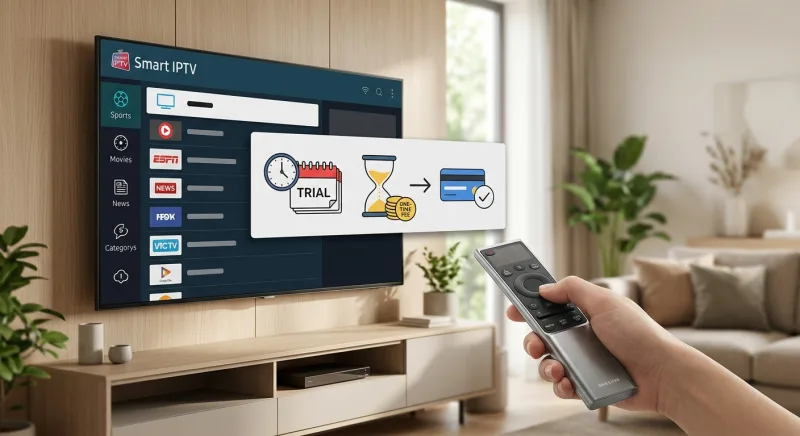
Smart IPTV offers a free trial period, typically around 72 hours, after which a small one-time activation fee is required to continue using the app. This fee covers the app itself, not any IPTV subscription content you connect to it.
How do I know if an IPTV subscription service is legal?
Legitimate IPTV providers typically disclose licensing information, operate transparent business practices, and avoid offering premium cable or pay-per-view content at unrealistically low prices. Researching a provider’s reputation and licensing claims before subscribing helps reduce legal and security risks.
Can I use IPTV on older Samsung Smart TVs?
Older Samsung TVs may have limited app store selections and weaker processing power, making some IPTV apps run less smoothly or become unavailable entirely. Checking your TV’s Tizen OS version and app store options beforehand can help determine compatibility.
Why does my IPTV stream keep buffering on Samsung TV?
Buffering is usually caused by insufficient internet bandwidth, network congestion, or an overloaded provider server. Switching to a wired connection, restarting your router, or trying a different IPTV app can often resolve intermittent buffering issues.
Can I use multiple IPTV apps on the same Samsung TV?
Yes, most Samsung TVs allow multiple IPTV apps to be installed simultaneously, as long as storage space permits. This can be useful for comparing performance or accessing different playlists without switching devices.
Samsung Smart TVs are some of the most popular streaming devices in the world, and pairing one with the right IPTV solution can transform your living room into a full entertainment hub. But not every IPTV app works smoothly on Samsung’s Tizen operating system, and picking the wrong one can mean buffering, crashes, or a clunky interface. This guide breaks down what to look for, the top IPTV apps compatible with Samsung TVs, and how to set everything up correctly.
What Is IPTV and How Does It Work on Samsung TV?
IPTV, short for Internet Protocol Television, delivers live TV channels and on-demand content through an internet connection rather than traditional cable or satellite signals. Instead of a set-top box tuned to a broadcast frequency, IPTV streams data packets directly to your device, similar to how Netflix or YouTube works.
Finding reliable guidance on the best IPTV option for Samsung TVs can be difficult. Our service speaks for itself: rated 4.8 stars across 2,518 reviews, with support for Smart TVs and instant activation in about a minute.
The IPTV industry continues to grow rapidly worldwide as viewers move away from traditional cable. Since 2014, our service has grown alongside that shift, now serving over 800,000 users across more than 17,000 live channels and 117,000 movies and series.
On a Samsung TV, IPTV typically runs through a dedicated app installed via the Samsung Smart Hub or, in some cases, sideloaded using developer tools. These apps read a playlist file (often in M3U or M3U8 format) or connect to a provider’s server using login credentials, then organize channels and video-on-demand libraries into a navigable interface.
Because Samsung TVs run on Tizen OS, not every IPTV player available for Android or Fire TV will work out of the box. This is why choosing an app specifically built for, or compatible with, Tizen matters so much for a smooth experience.
Key Features to Look for in IPTV for Samsung TV
Before choosing an IPTV app for your Samsung TV, it helps to know which features actually affect day-to-day usability. Here are the factors that matter most.
- Tizen OS compatibility: The app should be built or optimized for Samsung’s Tizen platform, not just adapted from Android.
- Electronic Program Guide (EPG) support: A clear, scrollable guide showing what’s airing now and later makes navigation far easier.
- Multi-format playlist support: Look for apps that accept M3U, M3U8, Xtream Codes, and JSON playlist formats for flexibility.
- Catch-up TV and VOD: The ability to rewind live broadcasts or access on-demand libraries adds significant value.
- Stable performance: Smooth playback without frequent buffering or crashing is essential, especially for live sports and news.
- User interface design: A remote-friendly, TV-optimized layout matters more than mobile-style menus.
- Multi-screen or profile support: Some households need separate profiles or the ability to stream on multiple devices simultaneously.
Interface stability strongly shapes user satisfaction with streaming apps. That’s why our platform runs on Anti-Freeze Technology, delivering zero buffering during peak events. Testing performance yourself is easy, thanks to our free 24-hour trial.
Buffering and app crashes remain common frustrations for streaming and smart TV users everywhere. Our service addresses this directly with Anti-Freeze Technology, delivering zero buffering during peak events and dependable playback across every supported device.
Best IPTV Apps and Players for Samsung TV
Below are some of the most widely used IPTV player apps that are either natively available on Samsung’s Smart Hub or can be installed through supported workarounds. Each one has strengths depending on what you value most, whether that’s simplicity, customization, or advanced EPG features.
1. Smart IPTV (SIPTV)
Smart IPTV is one of the most established IPTV players for Samsung Smart TVs. It’s available directly on many Samsung app stores and pairs with playlists uploaded through its companion website. Users appreciate its clean grid layout, reliable EPG integration, and consistent updates.
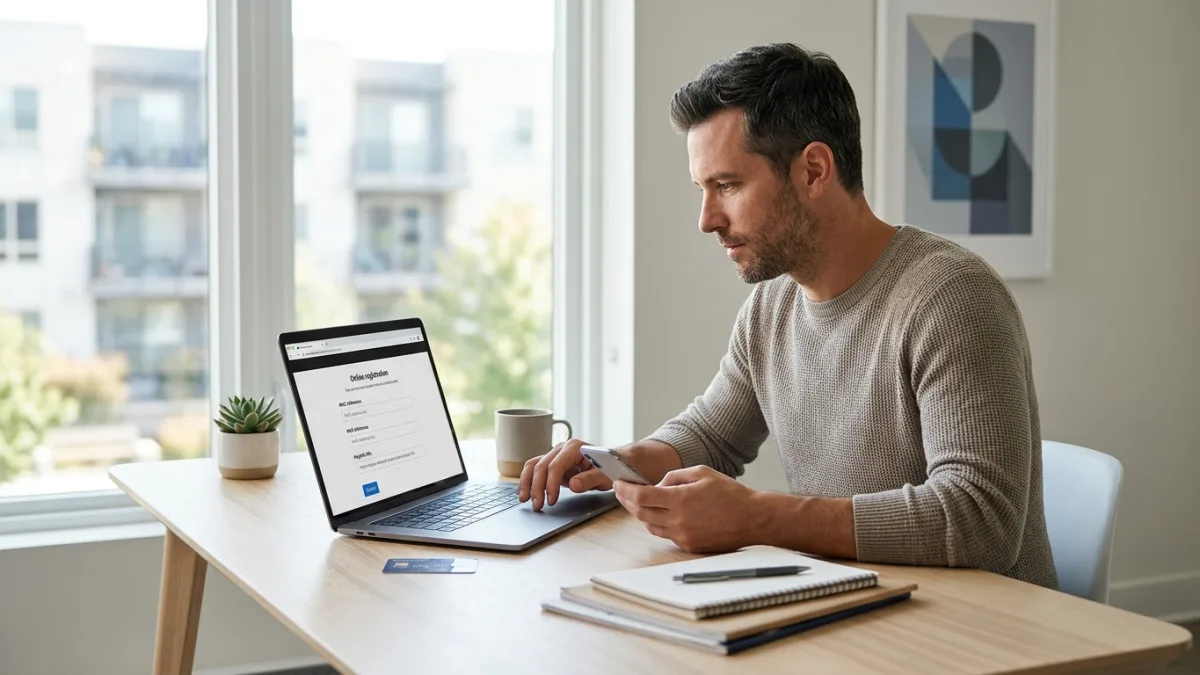
One drawback is that Smart IPTV requires activation through a small one-time fee after a trial period, and playlists must be registered online rather than entered directly in the app. Still, for Samsung-specific reliability, it remains a favorite among long-time IPTV users.
2. IPTV Smarters Pro
IPTV Smarters Pro is a cross-platform app known for its polished interface and support for Xtream Codes API connections. While it’s more commonly associated with Android and Fire TV, versions compatible with Samsung devices exist, often through sideloading methods.
It supports multiple playlists, catch-up TV, and a built-in EPG that many users find more intuitive than competitors. If your provider supports Xtream Codes logins, this app tends to offer one of the smoothest setup processes.
3. GSE Smart IPTV
GSE Smart IPTV is praised for its flexibility, supporting a wide range of playlist formats including M3U, JSON, and Xtream Codes. It also includes external player support, subtitle syncing, and multi-screen capability for tech-savvy users who want more control.
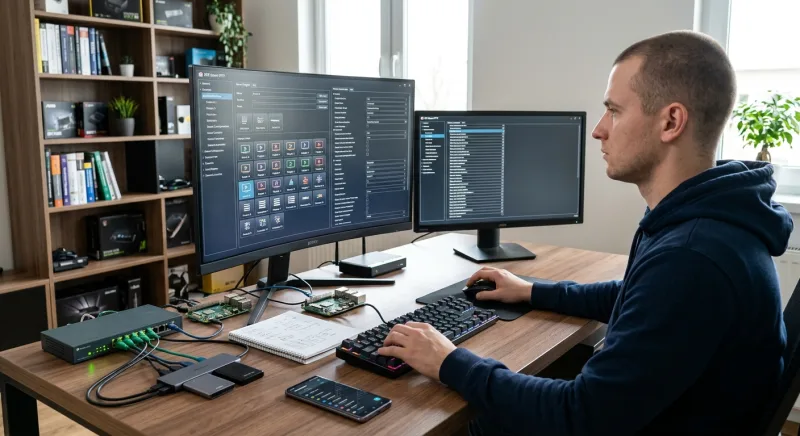
The interface can feel less refined compared to Smart IPTV or IPTV Smarters, but the sheer number of customization options makes it appealing for advanced users managing multiple playlists or providers.
4. Perfect Player IPTV
Perfect Player is a lightweight IPTV app that focuses on speed and simplicity. It supports M3U playlists and EPG integration, and while it’s more commonly used on Android boxes, some users successfully run it on Samsung TVs via workaround installations.
It’s a solid choice for those who want a no-frills experience without excessive menus or ads cluttering the interface.
5. SS IPTV
SS IPTV is another Samsung-friendly option, often pre-installed or easily downloadable through Samsung’s app store depending on the region. It offers straightforward playlist management and has been optimized specifically for Samsung’s remote and navigation system.
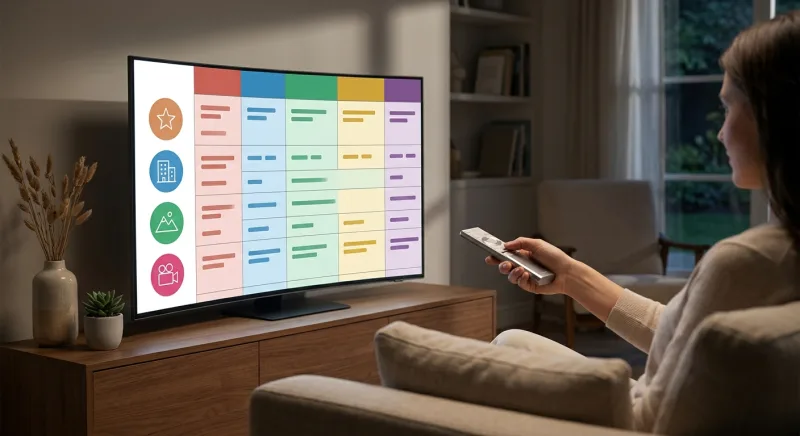
Its EPG support and channel categorization make it a dependable pick for users who primarily want live TV without a lot of extra features.
Comparison Table: Top IPTV Apps for Samsung TV
| App | Tizen Compatibility | EPG Support | Playlist Formats | Best For |
|---|---|---|---|---|
| Smart IPTV | Native | Yes | M3U | Reliability and simplicity |
| IPTV Smarters Pro | Sideload/Workaround | Yes | M3U, Xtream Codes | Polished interface |
| GSE Smart IPTV | Sideload/Workaround | Yes | M3U, JSON, Xtream Codes | Advanced customization |
| Perfect Player | Sideload/Workaround | Yes | M3U | Lightweight performance |
| SS IPTV | Native | Yes | M3U | Samsung-optimized navigation |
How to Install IPTV on Samsung TV
Installing IPTV on a Samsung Smart TV varies slightly depending on the app and your TV’s model year, but the general process follows a similar pattern. Here’s a step-by-step overview for the most common method.
- Turn on your Samsung TV and navigate to the Smart Hub or App Store.
- Search for the IPTV app you want to install, such as Smart IPTV or SS IPTV.
- Download and install the app directly from the store if it’s natively supported.
- Note the MAC address displayed within the app, usually found in the settings menu.
- Visit the app’s companion website on a computer or phone and register your MAC address with your playlist URL.
- Restart the app on your TV to load the newly linked playlist and EPG data.
- Browse channels or VOD content using your TV remote once the playlist populates.
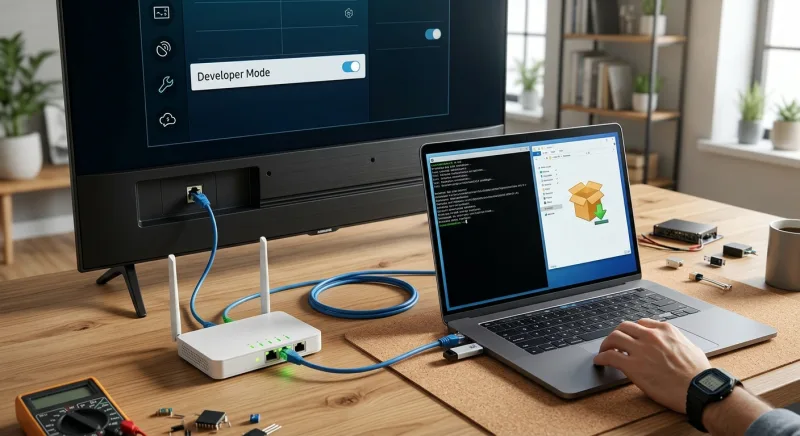
For apps not available in the native Samsung store, some users rely on developer mode sideloading, which involves enabling developer options through the TV’s settings and installing an APK-style package via a local network connection. This method is more technical and may not be supported on all Samsung TV models.
Samsung Smart TV Compatibility Considerations
Samsung’s Tizen OS has gone through multiple versions over the years, and not every IPTV app supports every version equally well. Older Samsung TVs, particularly models from before 2018, may have limited app store options or reduced processing power for handling high-bitrate streams.
Newer Samsung models generally offer better hardware decoding support for formats like H.265 (HEVC), which many IPTV providers use to reduce bandwidth while maintaining picture quality. If you’re using an older TV, checking the supported codec list in your TV’s manual can prevent playback issues before committing to a service.
Compatibility issues can vary widely depending on which Tizen version a Samsung TV runs. Rather than guess at the installed base, our service supports Smart TVs directly alongside Firestick, Android TV, Roku, and more, so setup stays simple regardless of your TV’s age.
Legal Considerations When Choosing IPTV Services
It’s important to distinguish between IPTV player apps, which are simply software tools for streaming content, and IPTV subscription services, which provide the actual channel content. The apps mentioned above are legal to download and use, but the legality of a subscription depends entirely on whether the provider has proper licensing agreements with content owners.
Unauthorized IPTV services that stream copyrighted content without licensing agreements operate in a legal gray area or outright violate copyright law, depending on jurisdiction. Users should research any IPTV subscription provider carefully, checking for transparent business practices, clear terms of service, and legitimate licensing claims before subscribing.
Choosing an unlicensed IPTV provider can carry real legal and financial risks for subscribers. That’s why our service operates transparently, with secured checkout, a 7-day money-back guarantee, and no hidden recurring charges built into any plan.
Tips for Getting the Best IPTV Streaming Experience on Samsung TV
Even with the right app installed, a few adjustments can significantly improve stream quality and reliability on your Samsung TV.
- Use a wired connection when possible: Ethernet connections tend to offer more stable bandwidth than Wi-Fi, especially for 4K content.
- Check your internet speed: A minimum of 15-25 Mbps is generally recommended for smooth HD to 4K IPTV streaming without buffering.
- Update your TV’s firmware regularly: Samsung periodically releases Tizen updates that improve app performance and fix compatibility bugs.
- Restart your router periodically: This clears temporary network congestion that can cause stream interruptions.
- Avoid running multiple streaming apps simultaneously: Background apps can compete for bandwidth and processing resources.
- Use a VPN cautiously: Some users add a VPN for privacy, but this can occasionally slow down stream speeds depending on server location.
Smooth 4K streaming depends heavily on having sufficient, stable bandwidth. Rather than lean on a single benchmark, our service is engineered with Anti-Freeze Technology to deliver true 4K, UHD, FHD, and HD playback with zero buffering during peak events.
Choosing the Right IPTV Setup for Your Household
The “best” IPTV app for a Samsung TV often depends on individual priorities. Someone who wants a simple, native experience may prefer Smart IPTV or SS IPTV. Someone managing multiple playlists or providers might lean toward GSE Smart IPTV for its flexibility.
Families streaming across multiple rooms or devices should also consider whether their subscription allows multiple simultaneous connections, since not all providers support this without an upgraded plan. Testing a free trial period, when available, before fully committing helps confirm both app performance and content reliability on your specific Samsung model.
Frequently Asked Questions
Can I install any IPTV app directly on my Samsung Smart TV?
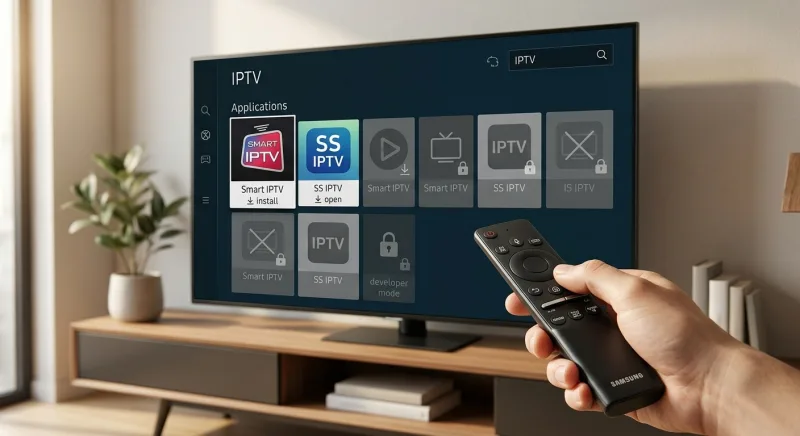
Not all IPTV apps are available directly through Samsung’s app store. Some, like Smart IPTV and SS IPTV, are natively supported, while others require sideloading through developer mode, which isn’t available or supported on every Samsung TV model.
Do I need a separate device to use IPTV on Samsung TV?
No, if your Samsung TV supports one of the compatible IPTV apps natively, you don’t need an external streaming box. However, older Samsung models with limited app support may benefit from an Android TV box or streaming stick as an alternative.
What internet speed do I need for smooth IPTV streaming?
Most IPTV providers recommend at least 15-25 Mbps for stable HD to 4K streaming. Slower connections may still work for standard-definition content but are more likely to experience buffering during peak usage hours or with multiple devices connected.
Is Smart IPTV free to use on Samsung TV?
Smart IPTV offers a free trial period, typically around 72 hours, after which a small one-time activation fee is required to continue using the app. This fee covers the app itself, not any IPTV subscription content you connect to it.
How do I know if an IPTV subscription service is legal?
Legitimate IPTV providers typically disclose licensing information, operate transparent business practices, and avoid offering premium cable or pay-per-view content at unrealistically low prices. Researching a provider’s reputation and licensing claims before subscribing helps reduce legal and security risks.
Can I use IPTV on older Samsung Smart TVs?
Older Samsung TVs may have limited app store selections and weaker processing power, making some IPTV apps run less smoothly or become unavailable entirely. Checking your TV’s Tizen OS version and app store options beforehand can help determine compatibility.
Why does my IPTV stream keep buffering on Samsung TV?
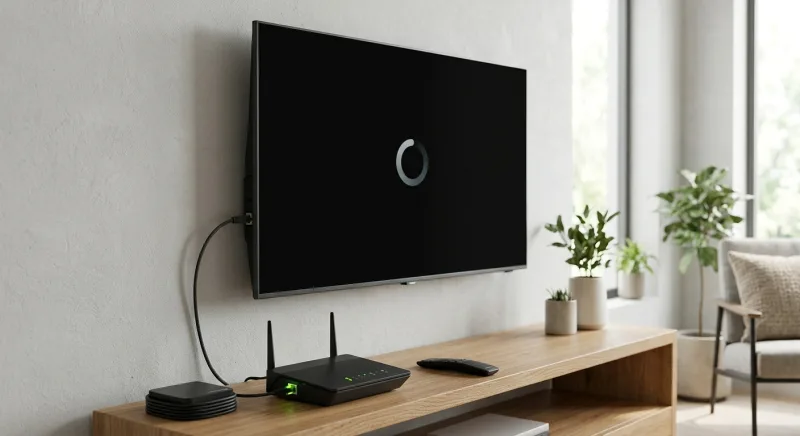
Buffering is usually caused by insufficient internet bandwidth, network congestion, or an overloaded provider server. Switching to a wired connection, restarting your router, or trying a different IPTV app can often resolve intermittent buffering issues.
Can I use multiple IPTV apps on the same Samsung TV?
Yes, most Samsung TVs allow multiple IPTV apps to be installed simultaneously, as long as storage space permits. This can be useful for comparing performance or accessing different playlists without switching devices.
Key statistics
- Smart TVs account for the largest share of IPTV revenue by device/access platform, at 48.20% in 2025. (Mordor Intelligence, 2026)
References
- Smart TVs, including Samsung’s Tizen platform, are increasingly the primary hardware access point for IPTV consumption. — Mordor Intelligence (Established industry market intelligence and forecasting firm)